Adding Items to Your Cart
The cart is your personal collection of items you’re interested in buying. On GaijinMall, you can easily add any product to your cart in just a few steps.
Step-by-Step Guide
-
Browse or Search for a Product
Use the homepage categories or search bar to find the product you want.
-
Click on the Product
Tap or click on the product card to view the full details.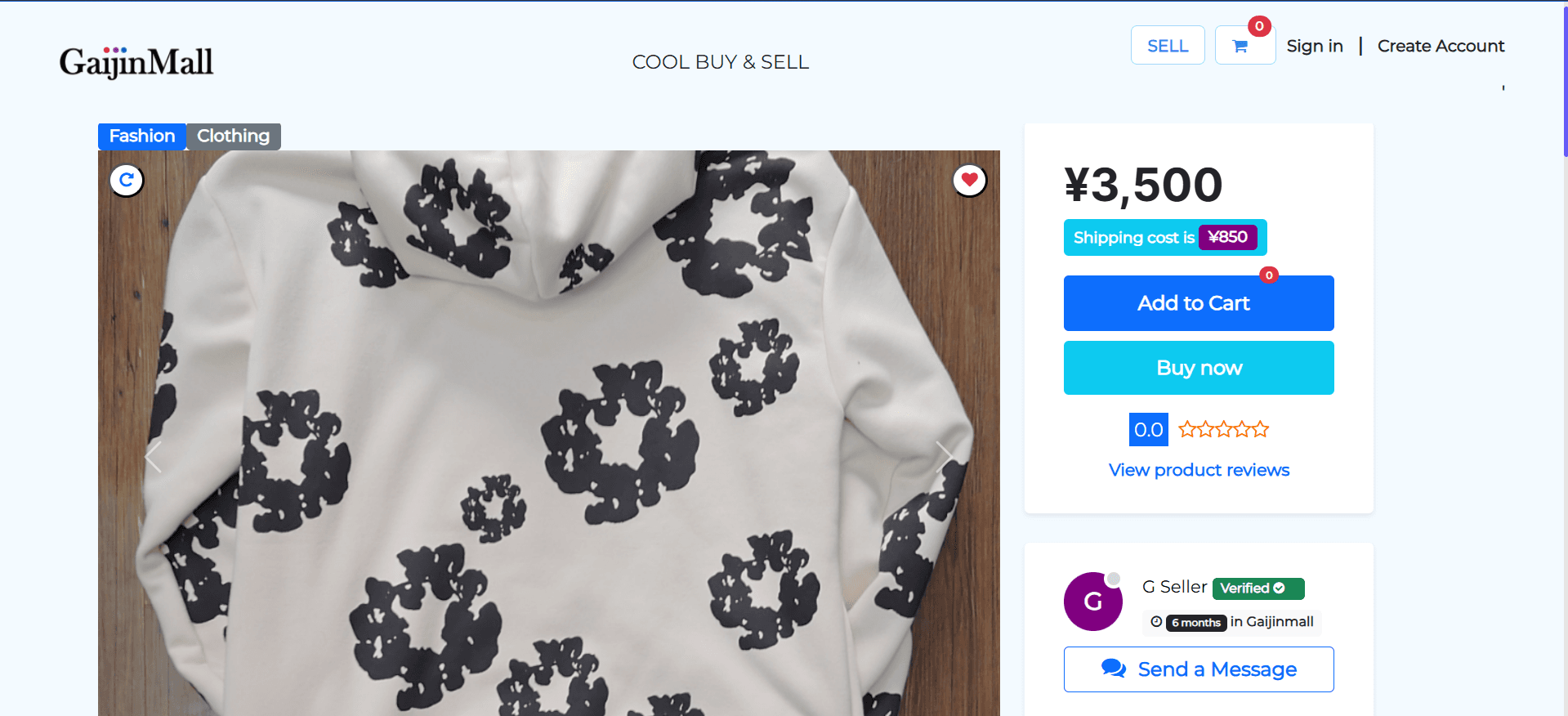
-
Click “Add to Cart”
Once satisfied, click the Add to Cart button.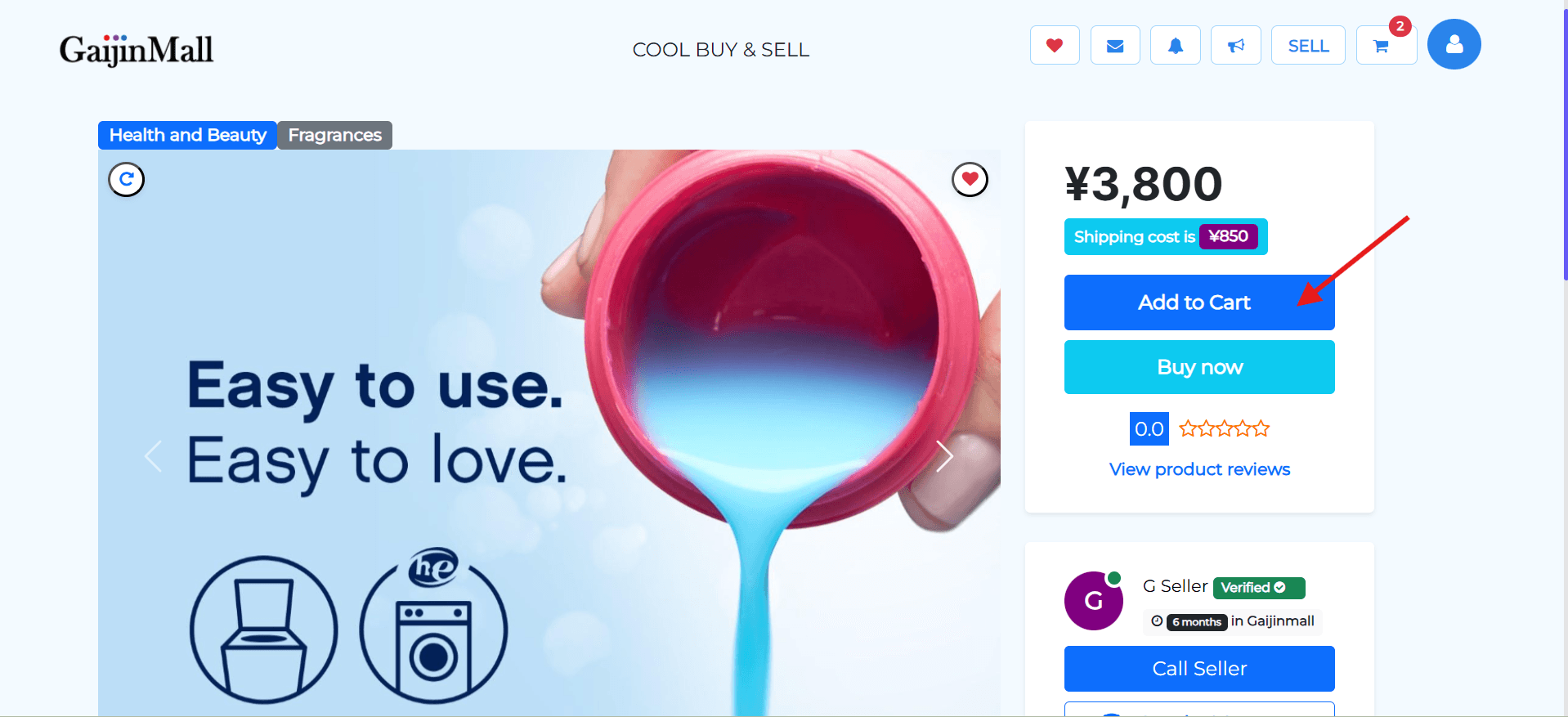
-
View Confirmation
A confirmation popup or message will appear letting you know the item was successfully added.
Accessing Your Cart
To view the items you’ve added:
- Click the cart icon at the top-right corner of the screen.
- Review all items, adjust quantities, or remove products as needed.

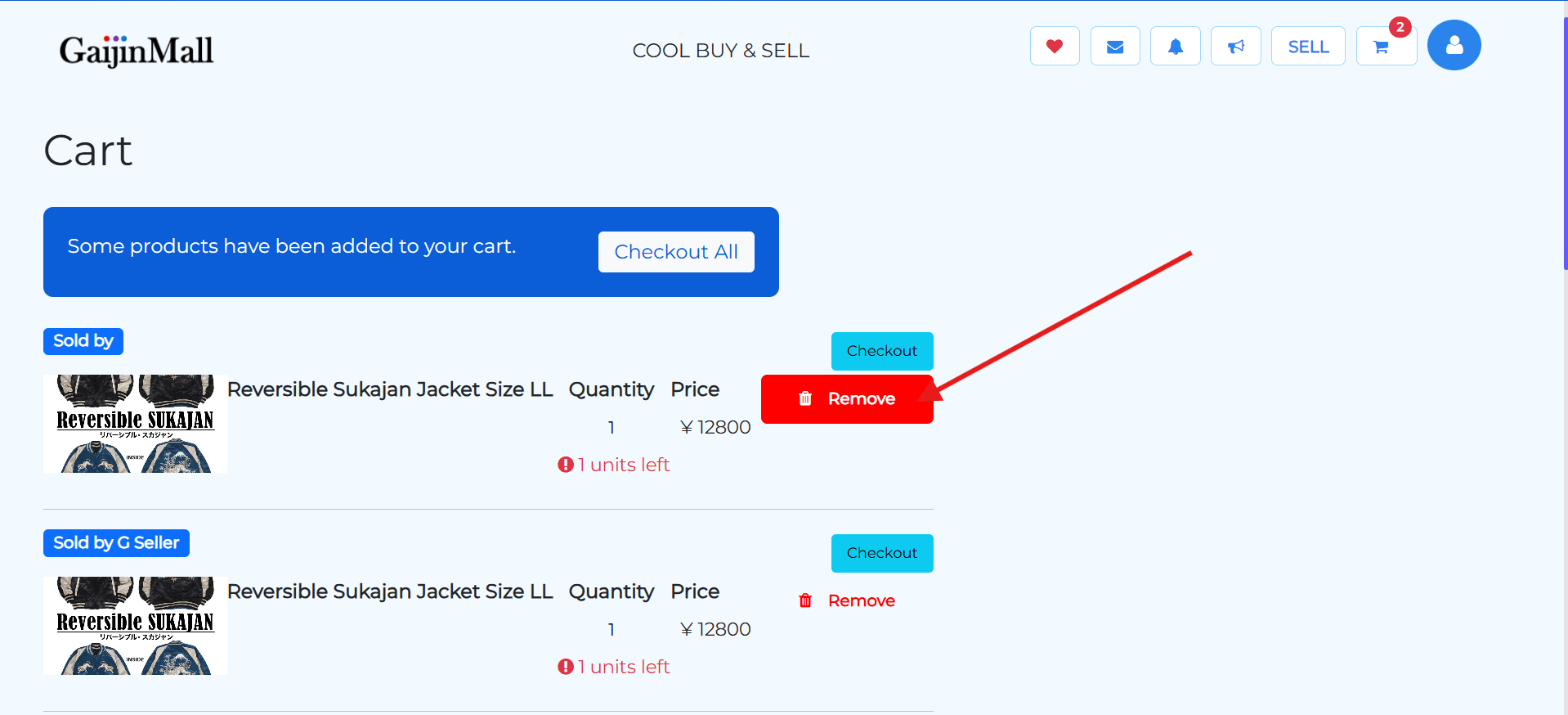
Removing Item from Cart
- Click the remove button to remove item from cart
Tips
- You can add multiple different items to your cart.
- Prices, discounts, and shipping fees will be calculated automatically.
- Items in your cart are not reserved until you complete checkout.
Need Help?
If you’re having trouble adding items to your cart, contact support or refresh your browser and try again.
Last updated on