✍️ Creating New Ads (Product Listings)
On Gaijinmall, creating a new ad allows you to showcase products you want to sell. Whether it’s a brand-new item or a second-hand deal, you can list it in just a few steps.
How to Create a New Ad
-
Go to the Sell Section
- From the homepage or bottom navigation, tap on the Start Selling button.
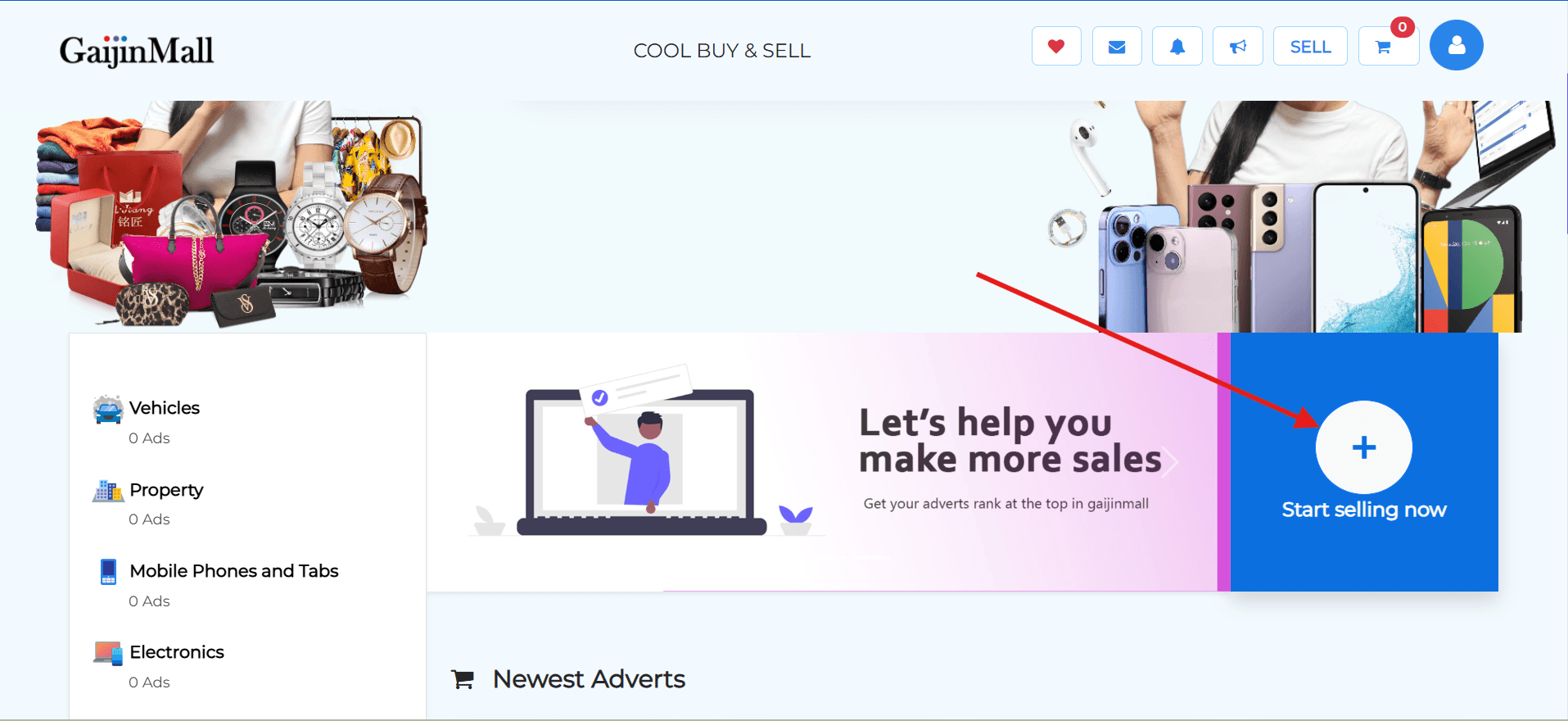
- From the homepage or bottom navigation, tap on the Start Selling button.
-
Tap “Create New Listing”
- You’ll be taken to the ad creation form where you can enter product details.
-
Fill Out Product Details Provide accurate and appealing information:
- Title – Name of the product
- Category – Choose the most relevant category
- Condition – New, Used, or Refurbished
- Description – Include important details, features, or defects
- Price – Set your selling price
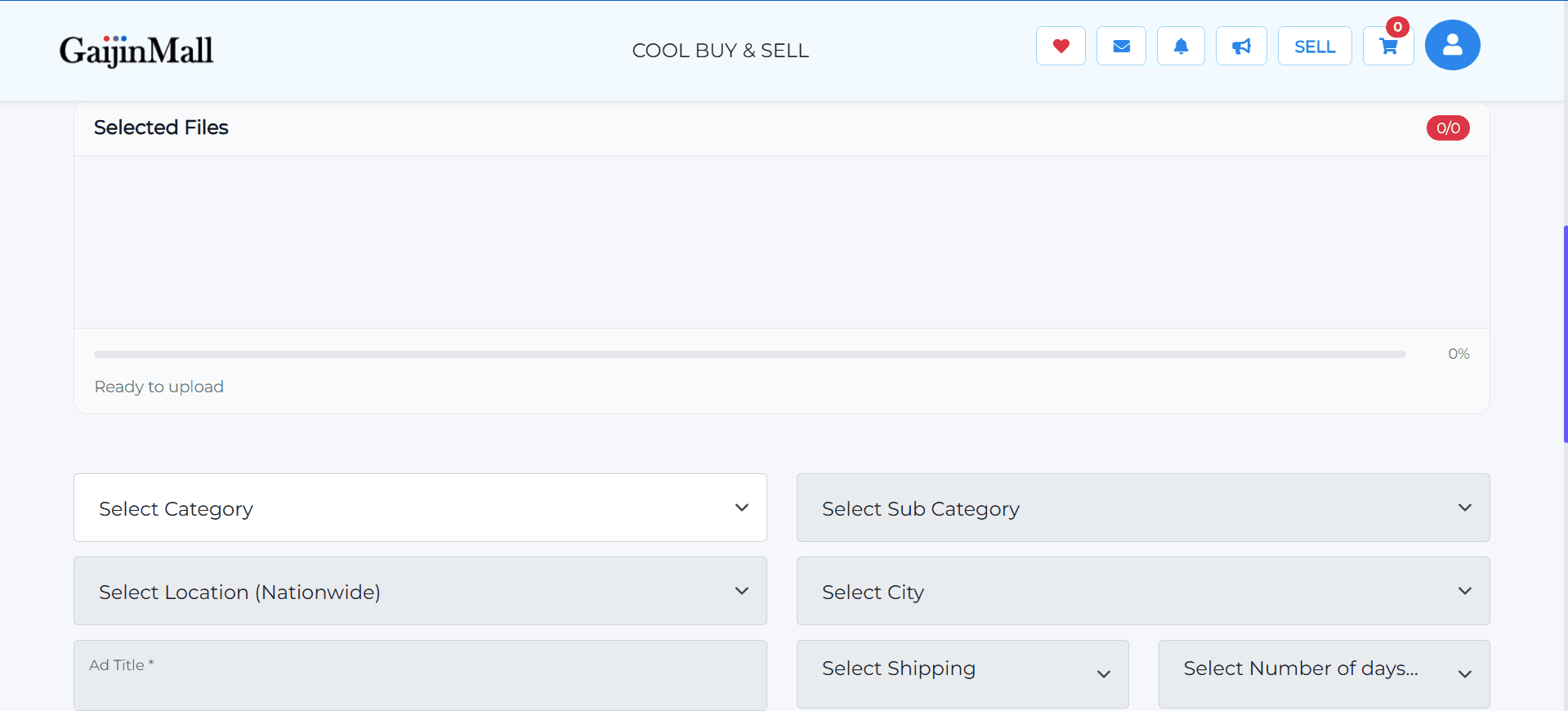
-
Upload Photos
- Add clear, high-quality images showing different angles of the product.
- The first photo will appear as the main thumbnail.
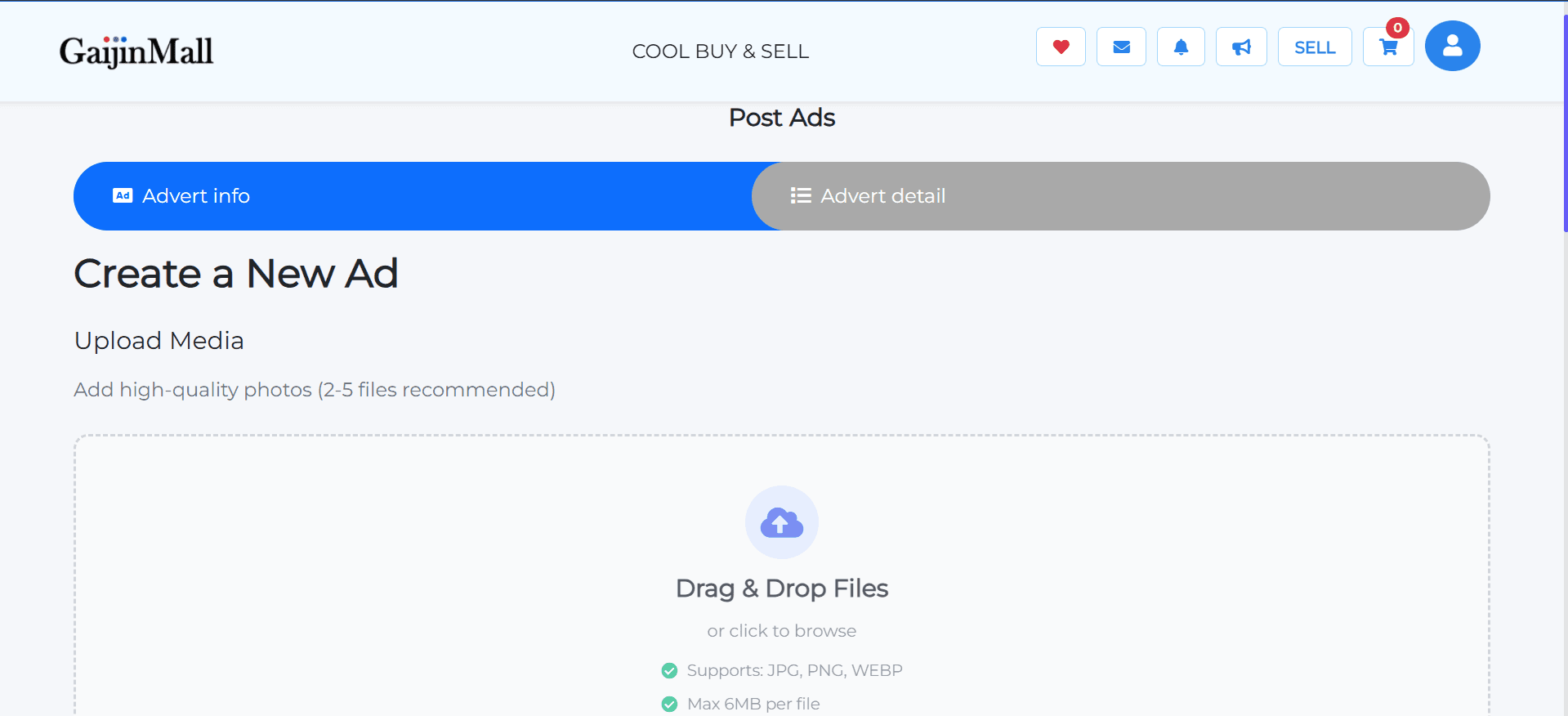
-
Set Location
- Choose your city or delivery area to help buyers nearby discover your ad.
-
Publish Your Ad
- Tap Post Ad or Publish to make your listing live.
- You’ll receive a success message once the ad is posted.
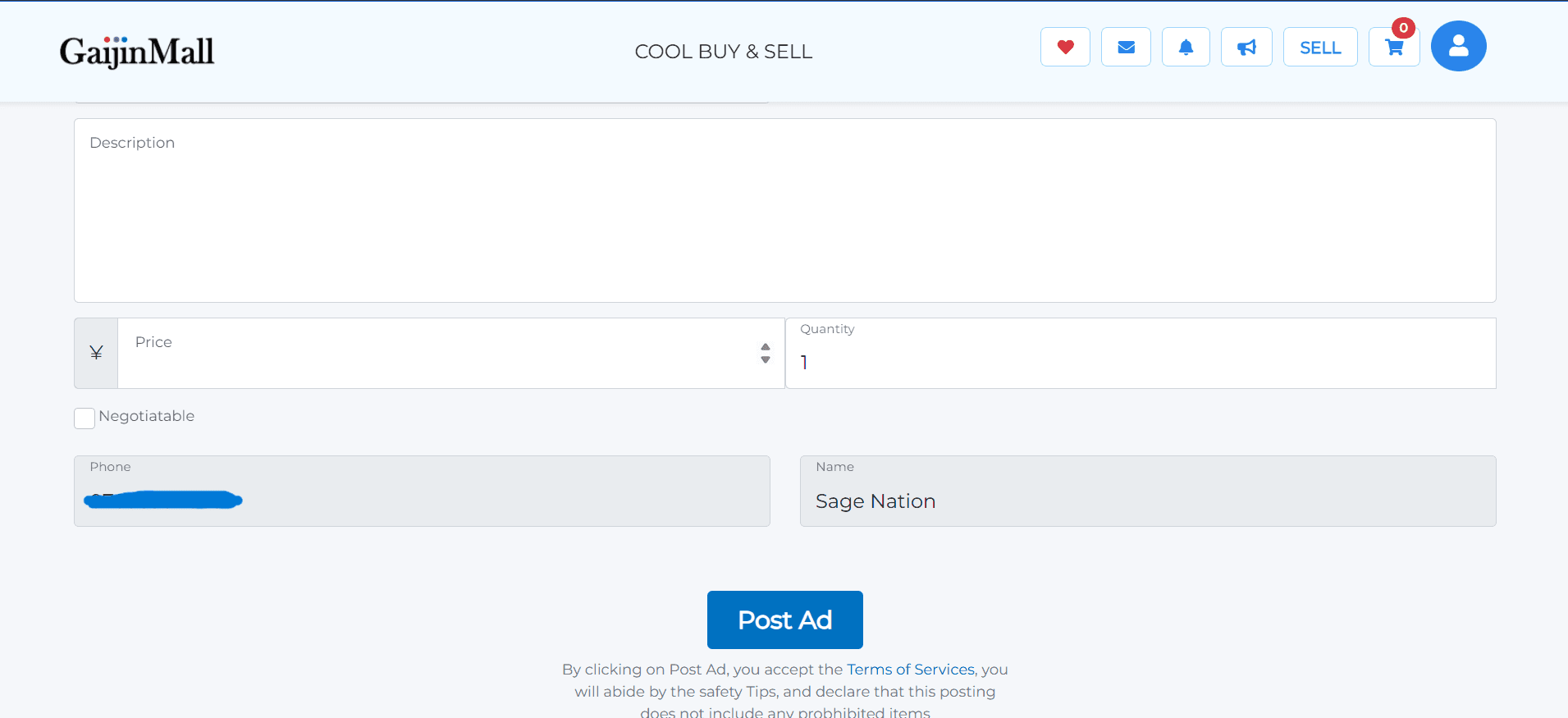
🛠️ Managing Your Ads
After posting, you can easily manage your listings to keep them accurate and up-to-date.
- You can edit, pause, or delete ads from your My Listings section.
- Ads may be reviewed before going live depending on platform rules.
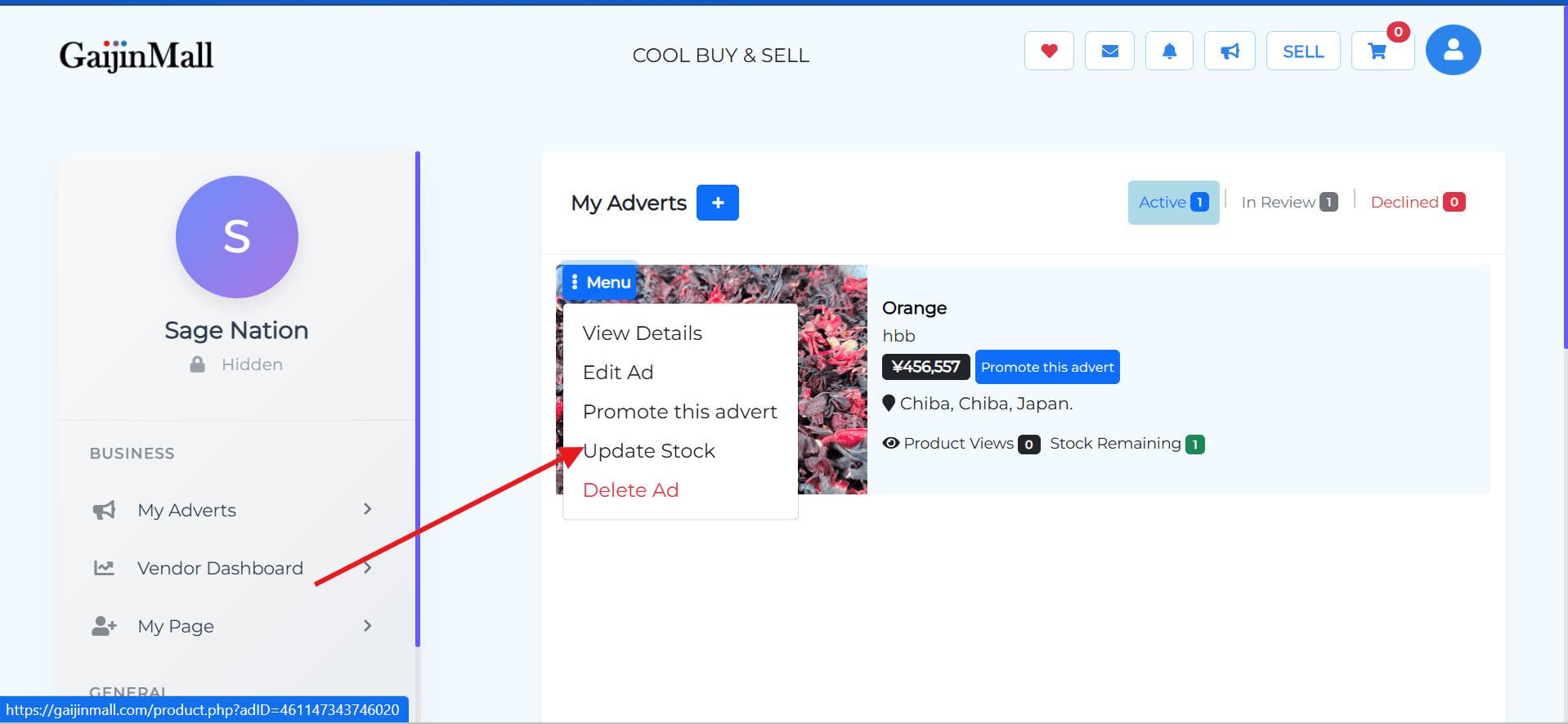
How to Update Your Stock Number
It’s important to keep your inventory accurate to avoid selling out-of-stock items. Here’s how you can manually update your stock after posting an ad.
- Go to Your Dashboard: Navigate to your dashboard and go to My Listings or My Advert page.
- Find the Blue Menu Button: Locate the ad you need to update, and click the blue menu button next to it.
- Select “Update Stock”: From the menu that appears, click the “Update Stock” option.
- Input Stock Number: A dialog box will appear. Enter the new number of available items.
- Save Changes: Hit the save button to publish the new stock number.
Need Help?
If you’re facing issues while listing your product:
- Ensure all required fields are filled.
- Check your internet connection.
- Reach out via Contact Support.
Last updated on