👀 Your Saved Ads
The Saved Ads feature is your personal collection of products you are interested in. You can save any listing and easily come back to it later, making it a great tool for tracking items you want to buy.
1. How to Save an Item
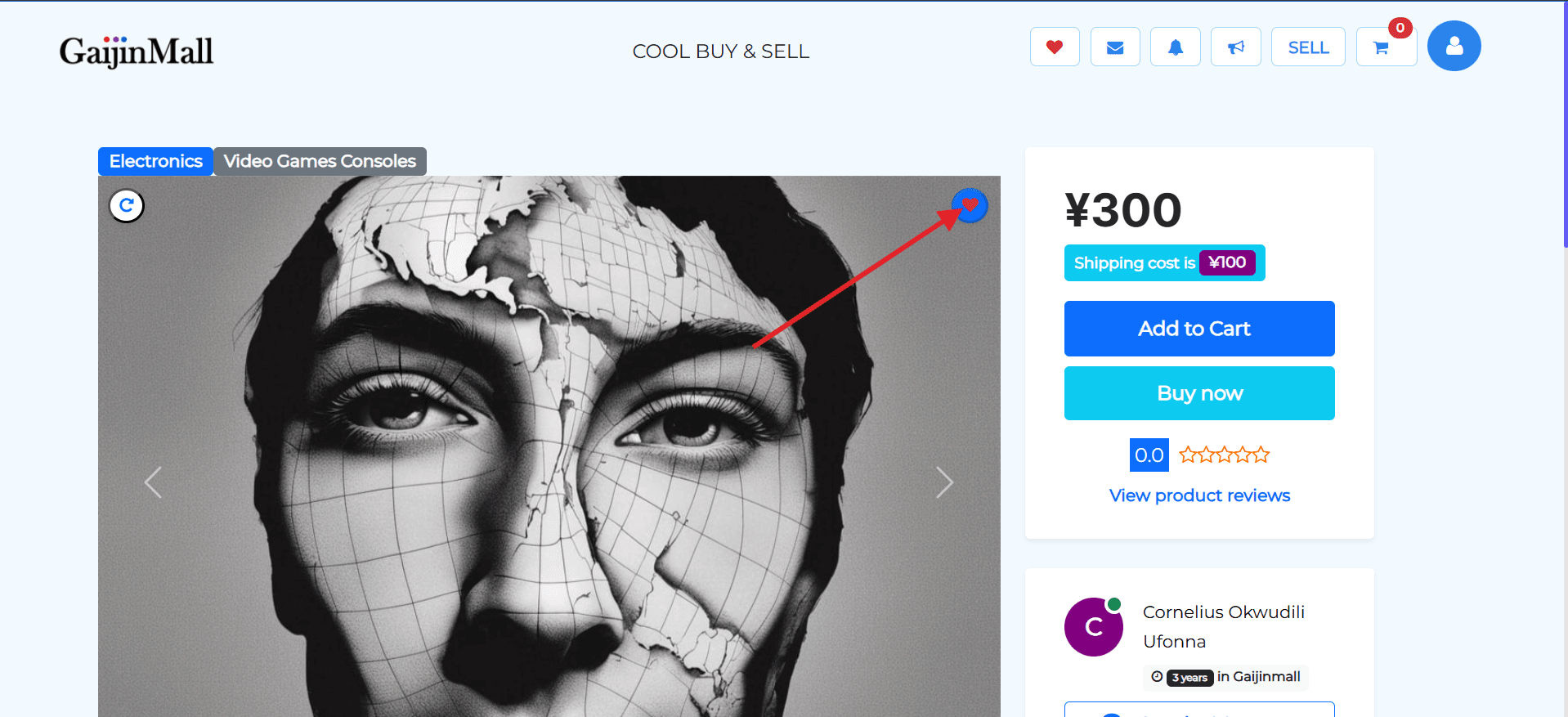
You can save a product directly from its listing page.
- Go to the Product Listing: Navigate to the page of the product you want to save.
- Click “Save”: Look for a button or icon and click it to add the ad to your saved list.
2. How to Access Your Saved Ads
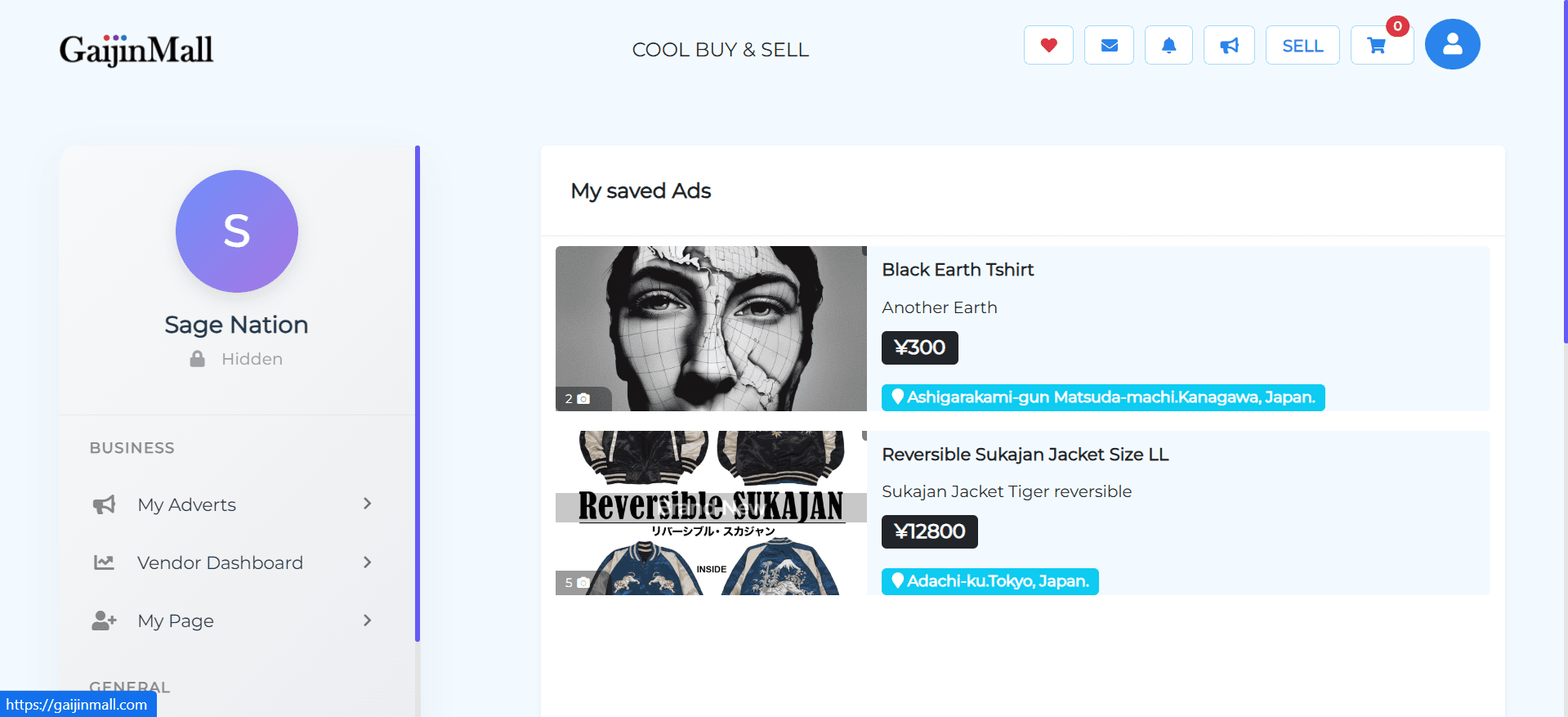
You can find all your saved items in your dashboard.
- Go to Your Dashboard: Click on your profile icon and navigate to your dashboard.
- Locate “Saved Ads”: Look for “Saved Ads” on the left navigation bar and click it to view your list.
3. Managing Your Saved Ads
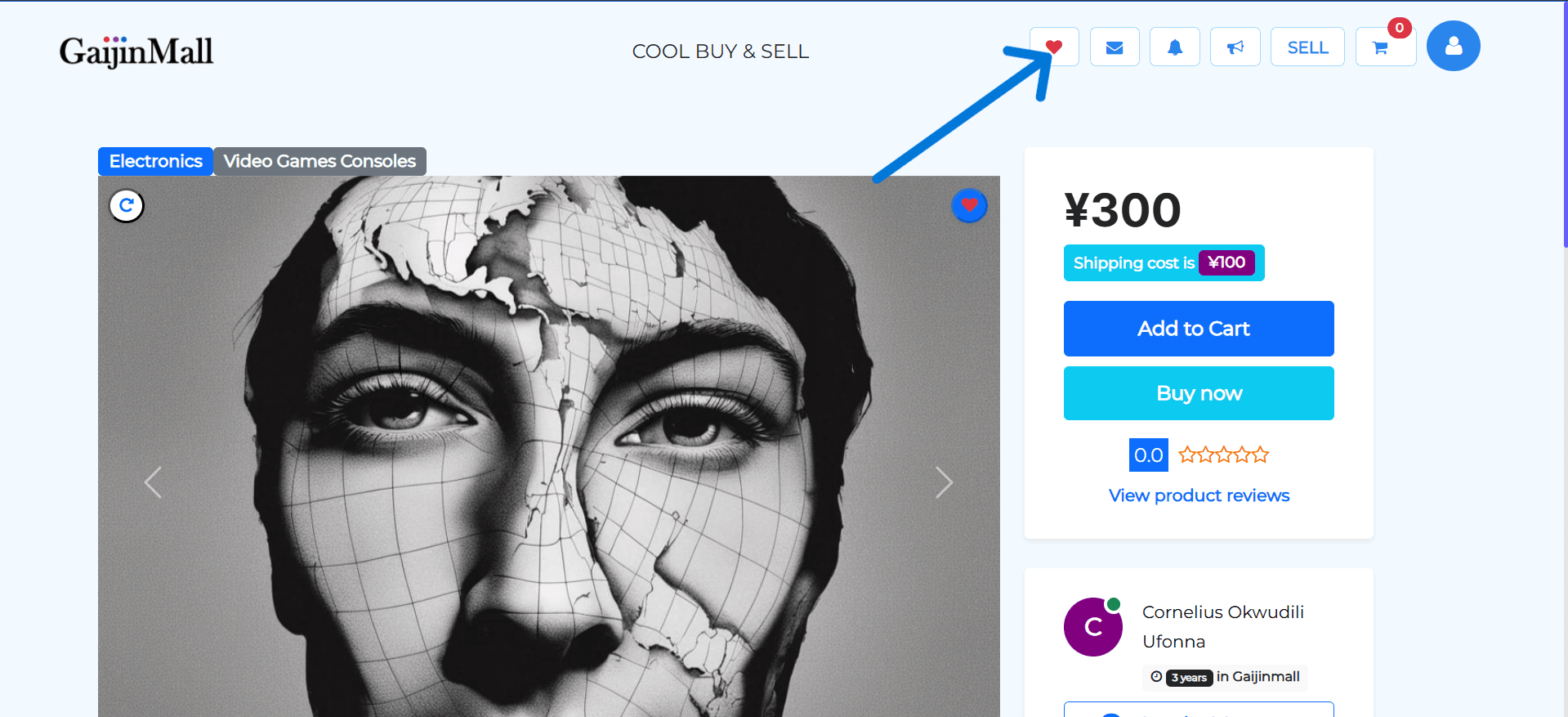
To manage the items you’ve saved, you must go back to the product page.
- Click on an Ad: From your list of Saved Ads, click on an ad to be redirected to its product listing page.
- Click the “Love Icon”: On the product page, click the love icon to remove the ad from your saved list.
Tip: The Saved Ads feature is a great way to compare products before you make a final decision.
Last updated on