Editing Your Profile
On Gaijinmall, managing your profile is quick and straightforward. Whether you’re updating personal details or configuring business and security settings, the Profile Settings page provides full control over your account.
Accessing Profile Settings
To begin editing your profile:
- Click the profile icon located at the top-right corner of the dashboard.
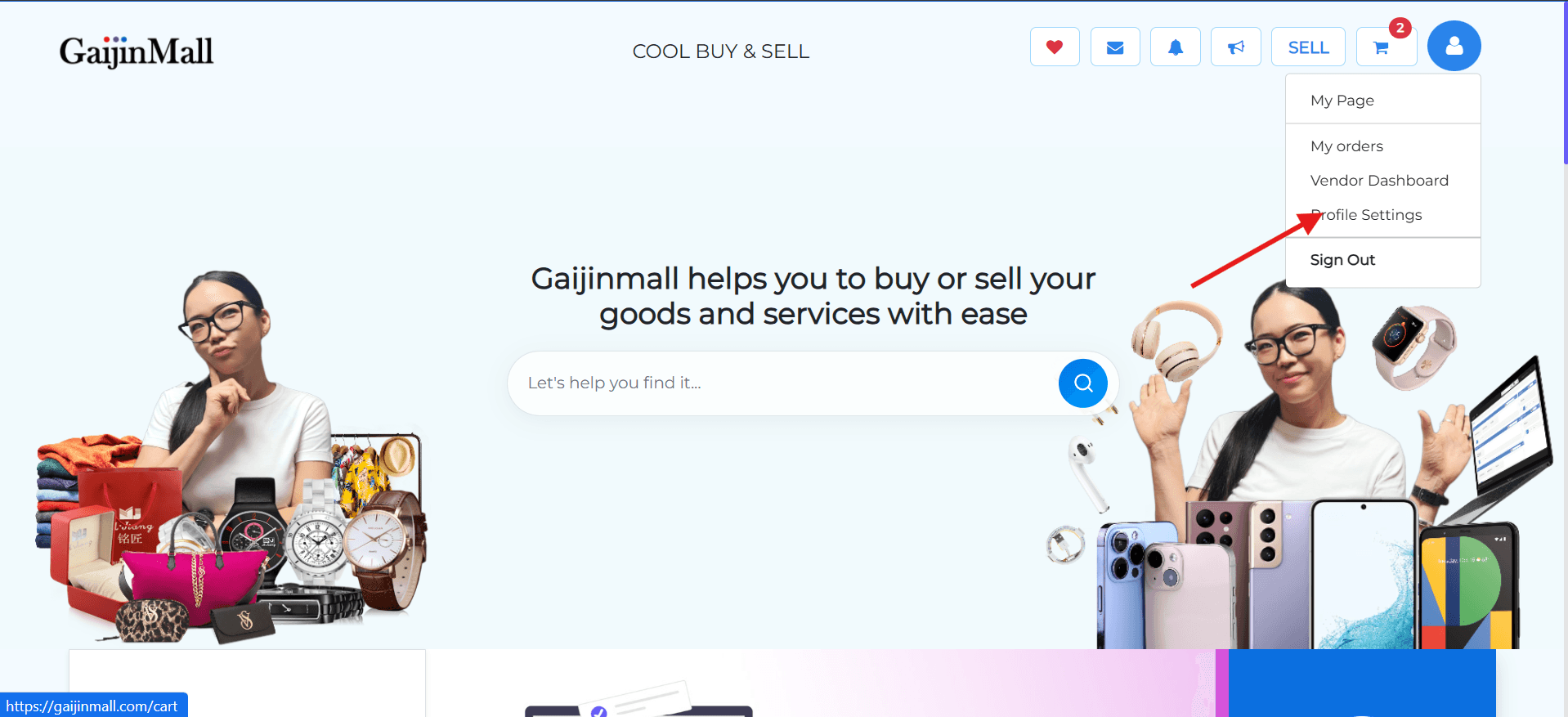
- You’ll be directed to the Profile Settings page where various customization options are available.
Available Profile Settings
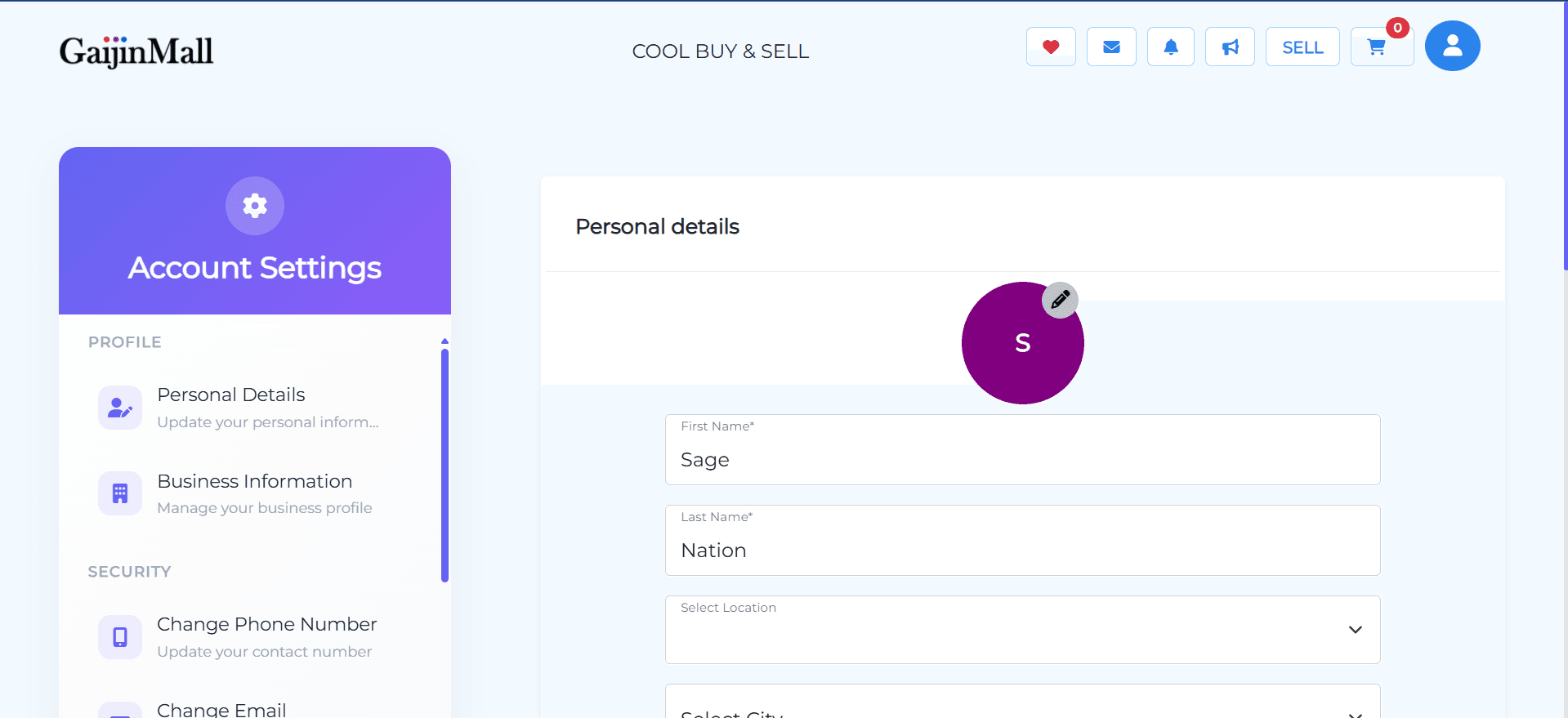
🔹 Personal Information
- Profile: View and edit your display name and profile picture.
- Personal Details: Update your name, gender, and other personal info.
- Business Information: Manage your store or vendor profile details.
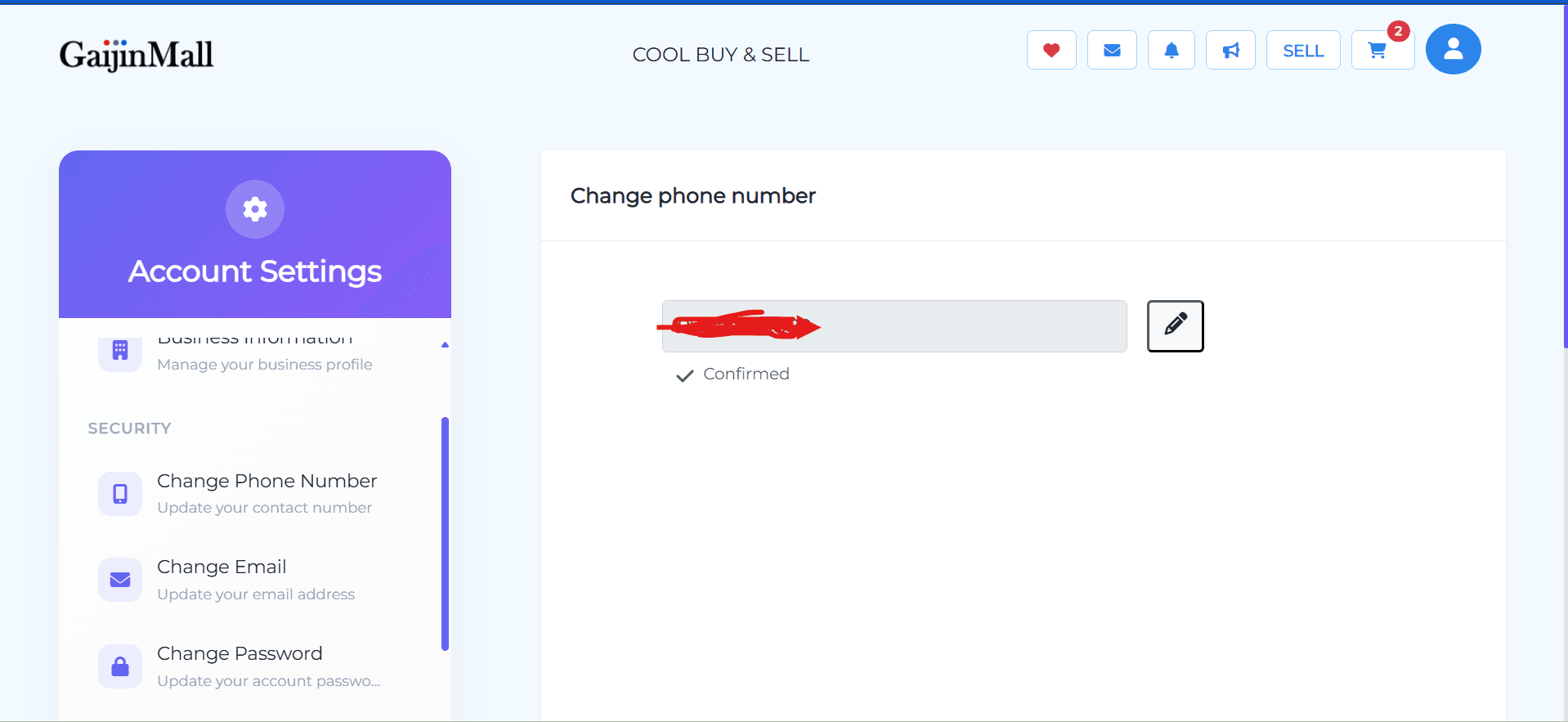
🔐 Security
- Change Phone Number: Update your contact number.
- Change Email: Replace your existing email address with a new one.
- Change Password: Set a new password for account security.
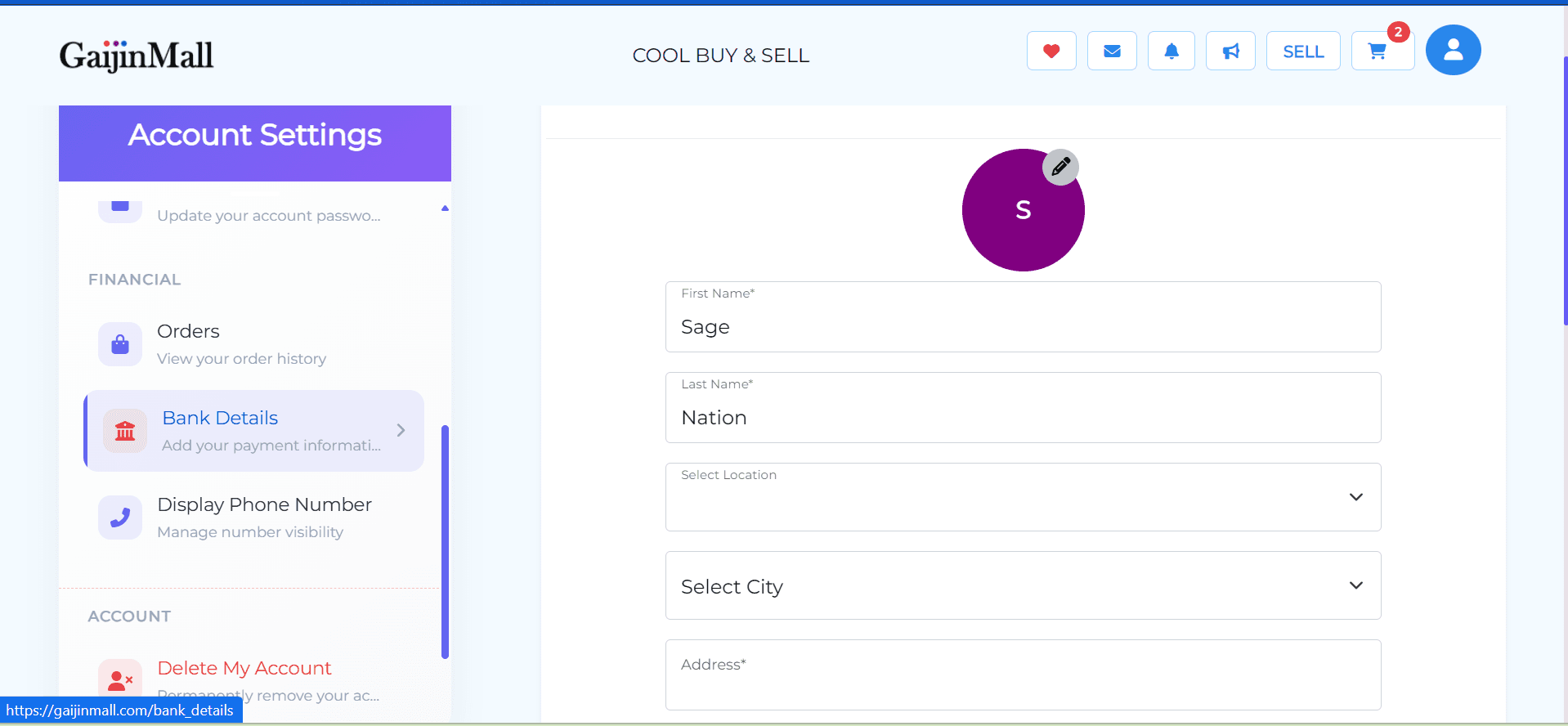
💳 Financial & Orders
-
Orders: View your complete order history.
-
Bank Details: Add or update bank information.
Required for vendors to receive payouts.
-
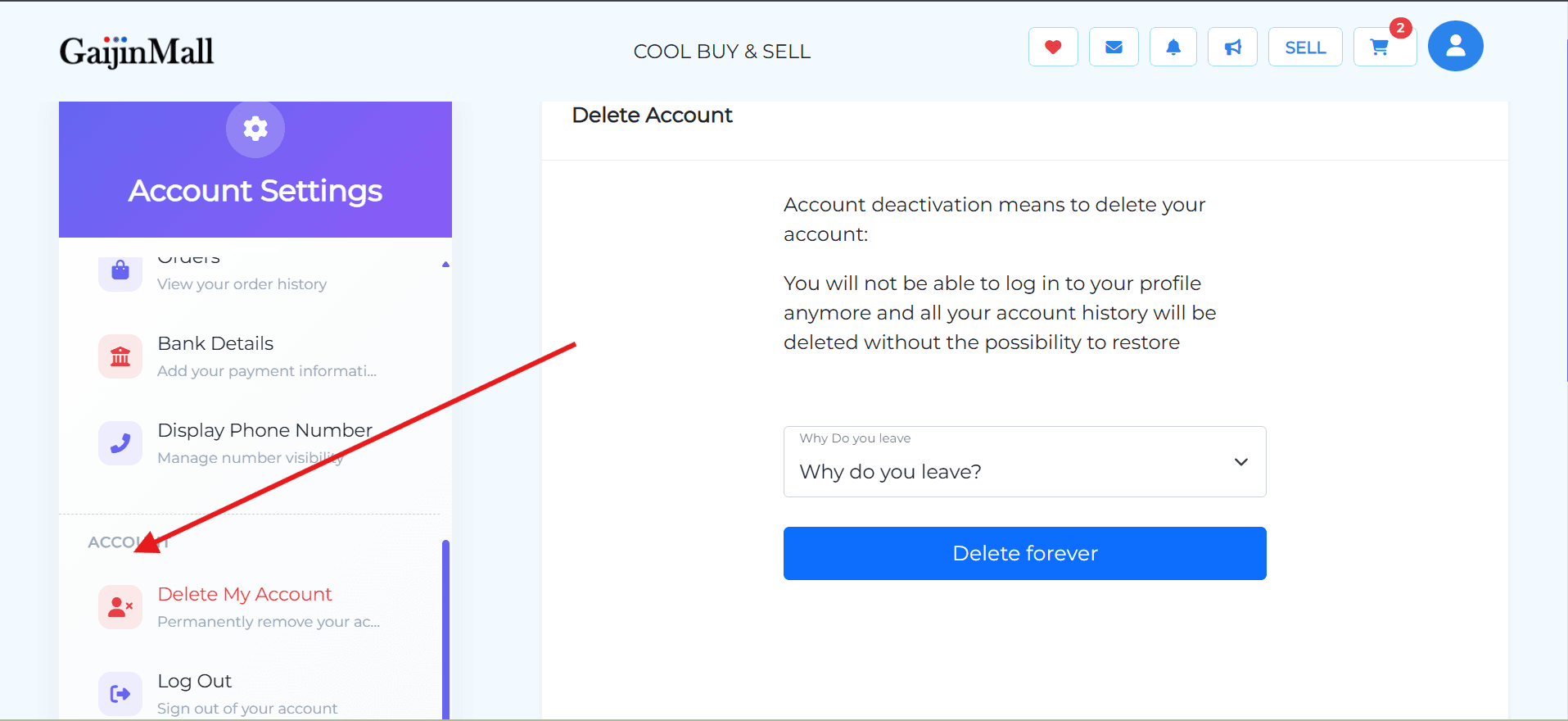
Display Phone Number: Control the visibility of your phone number.
Also required for vendors.
⚙️ Account Management
-
Delete My Account: Permanently delete your account from gaijinmall.
-
Log Out: Sign out of your current session.
Notes
- All changes made in the Profile Settings are saved instantly or with a confirmation prompt.
- For security-related changes like password or email, verification may be required.
Troubleshooting
If you’re unable to access your profile settings or facing errors during updates:
- Ensure you have a stable internet connection.
- Try clearing your browser cache.
- Contact support if the issue persists.
Need help? Visit our Support Page for further assistance.
Last updated on